
How to Install the GitHub CLI (gh) and Enable OhMyZsh Completion
Install the GitHub CLI (gh) on macOS, Windows, or Linux, sign in, learn the essential commands, and enable OhMyZsh tab completion.

The GitHub CLI (gh) is GitHub’s official command-line tool for working with repositories, issues, pull requests, and gists from your terminal. Install it with brew install gh on macOS, winget install --id GitHub.cli on Windows, or apt/dnf on Linux, then run gh auth login to sign in.
I’m an OhMyZsh user on macOS, so this post also walks through enabling tab completion for gh, which is the part of this guide I originally wrote it for.
What is the GitHub CLI (gh)?
The GitHub CLI is an open source command-line client for GitHub, invoked with the gh command. It is separate from git. Git manages your local repository history, while gh talks to GitHub itself.
With gh you can:
- Create, clone, fork, and view repositories
- List, create, and close issues
- Create, review, check out, and merge pull requests
- Create and manage gists
- Watch GitHub Actions runs and manage releases
It saves a trip to the browser for the things I do dozens of times a day.
How do I install the GitHub CLI?
The install command depends on your operating system. The official installation docs list every option, and the package name is always gh, even though the project is called GitHub CLI.
Install the GitHub CLI on macOS
On macOS, I suggest using Homebrew. Homebrew keeps the installation up to date.
brew install ghTo upgrade later, run brew upgrade gh.
Install the GitHub CLI on Windows
Windows Package Manager (winget) is the officially documented route and ships with current versions of Windows.
winget install --id GitHub.cliPrefer another package manager? Both of these work too.
scoop install ghchoco install ghYou can also download an .msi installer from the GitHub CLI releases page. Restart your terminal after installing so gh is on your PATH.
Install the GitHub CLI on Linux
On Debian and Ubuntu, GitHub publishes an official apt repository. Check the Linux install docs for the current key and repository setup, then install with:
sudo apt install ghOn Fedora, gh is available from the Fedora repositories:
sudo dnf install ghOther distributions, such as Arch, openSUSE, and Alpine, package gh as well.
Verify the installation
Whatever platform you use, confirm it worked.
gh --versionHow do I authenticate with gh auth login?
Before gh can act on your behalf, you need to sign in.
gh auth loginThe prompt asks where your account lives (GitHub.com or GitHub Enterprise Server), your preferred protocol (HTTPS or SSH), and how to authenticate. Choosing the browser option opens GitHub, where you paste a one-time code. When it finishes, check your status with:
gh auth statusAs a bonus, gh can act as a Git credential helper over HTTPS, so you stop managing tokens by hand.
What are some useful gh commands?
Here are the commands I reach for most often.
Clone a repository without copying a URL:
gh repo clone khalidabuhakmeh/some-repoList open issues in the current repository:
gh issue listCreate a pull request from your current branch. Add --fill to use your commit messages for the title and body:
gh pr create --fillCheck out a teammate’s pull request by number:
gh pr checkout 123Open the current repository in your browser:
gh repo view --webRun gh help or gh <command> --help to explore the rest.
Enabling shell completion for the GitHub CLI
Typing full subcommands gets old quickly. The GitHub CLI supports multiple shells, and tab completion makes gh far easier to explore. Here’s how to get it working with OhMyZsh.
Creating The Completion File
We need to generate a completion file specifically for ZSH. From our terminal, we run the following command.
gh completion --shell zsh > $ZSH_CUSTOM/plugins/gh.zshPerforming the command will generate the completion lists for ZSH right inside the OhMyZsh plugin directory. This directory is automatically loaded every time we start our shell. Note, we may need to type in our admin password to write to this directory.
Updating .zshrc
The next step is to tell OhMyZsh about our new command completion file. We need to open our .zshrc file by running the following command.
open ~/.zshrcThe .zshrc file should open in an editor, or macOS should prompt us to pick an editor. At the bottom of the file, add the following line.
# githubcompctl -K _gh ghWe can restart our terminal now, and code completion should work.
Testing Out The Completion
We can type gh followed by a tab, which should list all the commands.
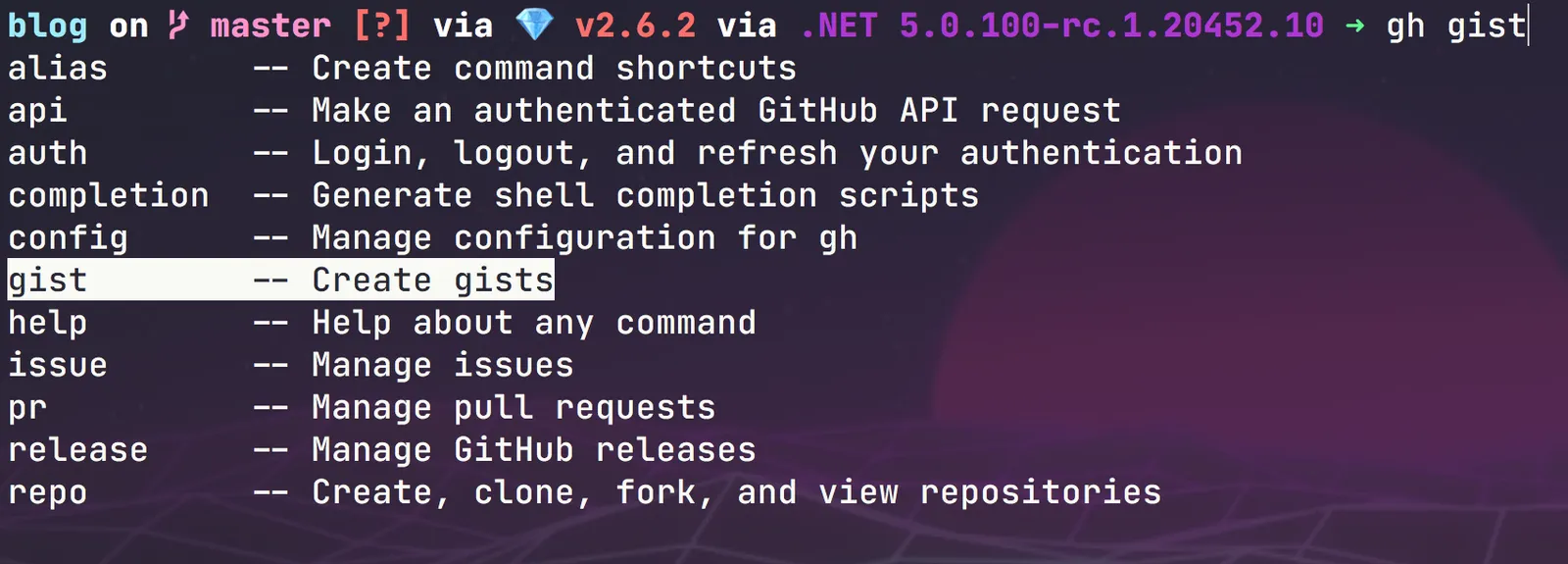
If you use Bash, Fish, or PowerShell, run gh completion --help to see the setup for those shells.
Wrapping up
The GitHub CLI is one of the easiest terminal upgrades you can make if you live on GitHub. Install it with your platform’s package manager, sign in with gh auth login, and enable completion so the commands are a tab away.
I hope this post was helpful, and thanks for reading.
Around the web
Comments
Loading comments from GitHub Discussions…