
C# Cheat Sheet: Modern Syntax Reference with Examples
A modern C# cheat sheet with copy-paste examples: types, collections, pattern matching, LINQ, async/await, records, and null handling for .NET.
 Khalid Abuhakmeh
18 min read
Quick answer
C# is a modern, object-oriented language from Microsoft that runs on .NET. This cheat sheet covers the syntax you reach for every day: variables, control flow, collections, classes and records, pattern matching, LINQ, async/await, and null handling, each with a copy-paste example.
C# is a modern, object-oriented language from Microsoft that runs on .NET. This cheat sheet covers the syntax you reach for every day: variables, control flow, collections, classes and records, pattern matching, LINQ, async/await, and null handling, each with a short, copy-paste example you can adapt. It targets current .NET (.NET 10 / C# 14), so every snippet uses modern idioms like top-level statements, collection expressions, and records.
Most “C# cheat sheets” stop at if statements and for loops. This post keeps going, because the features that make
C# productive day to day (LINQ, async/await, records, and pattern matching) are the ones beginners like you need
the most.
Bookmark it, skim the headings, and jump to what you need when you need it.
An important note for beginners: C# is a highly expressive language, with many ways to do the same task. There is no true “one way” to do anything. The style and aesthetic of your codebase is your choice or the choice of your team. While many teams default to Visual Studio style (the settings that ship with Visual Studio), some choose to pick and choose the C# features that work best for their situation. But remember, most importantly, have fun and be productive!
C# Hello World and Program Structure
Modern C# uses top-level statements: no class or Main boilerplate required. The file is the entry point.
Console.WriteLine("Hello, World!");Create and run it with the dotnet CLI. dotnet new console scaffolds a project whose Program.cs already contains that line, and dotnet run builds and runs it:
$ dotnet new console -o HelloWorld$ cd HelloWorld$ dotnet runHello, World!That single line is a complete, runnable program on modern .NET. When a project grows, you organize code into
namespaces, classes, and files, but you never need the old static void Main ceremony just to get started.
C# Project and Solution Structure
A C# project is a folder with a .csproj file at its root. That file is XML, and it tells the build what kind of output to produce, which .NET version to target, and which packages to reference.
<Project Sdk="Microsoft.NET.Sdk"> <PropertyGroup> <OutputType>Exe</OutputType> <TargetFramework>net10.0</TargetFramework> <Nullable>enable</Nullable> <ImplicitUsings>enable</ImplicitUsings> </PropertyGroup> <ItemGroup> <PackageReference Include="Serilog" Version="4.1.0"/> </ItemGroup></Project>You rarely edit this by hand; dotnet add package and your IDE update it for you. A typical project folder looks like this:
HelloWorld/├── HelloWorld.csproj├── Program.cs└── bin/ and obj/ # build output, keep out of source controlA solution (.sln) groups related projects so you can build and open them together, for example a web API, a class library of shared code, and a test project. Create one and add projects with the CLI:
$ dotnet new sln -n Shop$ dotnet sln add src/Shop.Api src/Shop.Core tests/Shop.TestsImplicitUsings adds common using directives (like System and System.Linq) automatically, which is why the Hello World example never imported anything. Nullable turns on the nullable reference type checks covered later in this cheat sheet.
C# Namespaces
A namespace groups related types and helps you avoid name collisions. Two libraries can each define a Timer class as long as those classes live in different namespaces. Modern C# declares one with a file-scoped namespace: a single line at the top of the file, no braces.
namespace Shop.Orders;
public class Order{    public int Id { get; set; }}
The older block form wraps the types in braces, and you’ll still see it in existing code:
namespace Shop.Orders{ public class Order { }}Bring a namespace into scope with a using directive at the top of a file:
using System.Text;   // StringBuilder is now available by nameusing Shop.Orders;   // your own namespaces work the same way
var sb = new StringBuilder();var order = new Order();
A global using imports a namespace across the whole project, so you declare it once instead of in every file. A GlobalUsings.cs file is a common home for them:
global using System.Text;The ImplicitUsings setting in your .csproj is a bundle of global usings that .NET adds for you, which is why
Console and List<T> work without any using line. Without them, your files would repeat the same using directives over and over, since these types are so commonly used. When two
namespaces define a type with the same name, use the fully qualified name to disambiguate, like System.Timers.Timer versus System.Threading.Timer.
C# Variables and Data Types
Declare a variable with its type, or use var to let the compiler infer it. The most common built-in types are below.
The choice is a matter of preference, but many developers use var for brevity, readability, and the ability to change types
later with less effort.
int count = 5; // 32-bit integerlong big = 9_000_000_000; // 64-bit integerdouble price = 3.14; // 64-bit floating pointdecimal money = 9.99m; // 128-bit, use for currencybool isReady = true; // true / falsechar letter = 'A'; // single UTF-16 unitstring name = "Khalid"; // textvar inferred = "also a string"; // compiler infers the type| Type | Use for | Example |
|---|---|---|
int |
Whole numbers | 42 |
long |
Large whole numbers | 9_000_000_000 |
double |
General decimals | 3.14 |
decimal |
Money and exact decimals | 9.99m |
bool |
True/false | true |
char |
A single character | 'A' |
string |
Text | "hello" |
Use decimal (not double) for money, because double can’t represent values like 0.1 exactly. Underscores like 9_000_000_000 are digit separators and are ignored by the compiler.
C# Operators
// arithmeticint sum = 2 + 3;        // 5int remainder = 7 % 3;  // 1
// comparisonbool equal = a == b;bool greater = a > b;
// logicalbool both = x && y;     // AND (short-circuits)bool either = x || y;   // OR  (short-circuits)bool not = !x;          // NOT
// null handlingstring value = input ?? "default";   // null-coalescingint? length = text?.Length;          // null-conditionalinput ??= "fallback";                // assign if null
C# Strings and String Interpolation
Use $"{variable_name}" for string interpolation, the readable way to build strings from values.
string name = "Khalid";int count = 3;
string message = $"{name} has {count} posts.";   // "Khalid has 3 posts."string upper = name.ToUpper();                    // "KHALID"bool has = name.Contains("hal");                  // truestring[] parts = "a,b,c".Split(',');              // ["a", "b", "c"]string joined = string.Join("-", parts);          // "a-b-c"bool empty = string.IsNullOrWhiteSpace("  ");     // true
For multi-line text, use raw string literals (triple quotes), which keep quotes and backslashes literal:
string json = """ { "name": "Khalid", "active": true } """;A word of caution: string.Length counts UTF-16 code units, not the characters a person sees, which matters for emoji and non-Latin scripts. I cover this in measuring Unicode string lengths with C#.
C# Control Flow: if, switch, and Loops
// if / else if / elseif (score >= 90) grade = "A";else if (score >= 80) grade = "B";else grade = "C";A switch expression is the modern, concise alternative when you’re mapping an input to a value:
string label = status switch{ 1 => "Active", 2 => "Paused", _ => "Unknown" // _ is the default case};The common loops:
for (int i = 0; i < 5; i++)    Console.WriteLine(i);
foreach (var item in items)    Console.WriteLine(item);
while (condition)    DoWork();
do    DoWorkAtLeastOnce();while (condition);
Reach for foreach by default when you’re iterating a collection; use for when you need the index.
C# Collections: Arrays, Lists, and Dictionaries
Modern C# uses collection expressions ([...]) to create arrays and lists.
// arrayint[] numbers = [1, 2, 3, 4, 5];
// List<T> — resizableList<string> names = ["Ada", "Alan"];names.Add("Grace");names.Remove("Alan");int total = names.Count;
// Dictionary<TKey, TValue> — key/value lookupsDictionary<string, int> ages = new(){    ["Ada"] = 36,    ["Grace"] = 45};ages["Alan"] = 41;bool found = ages.TryGetValue("Ada", out int age);
// HashSet<T> — unique valuesHashSet<int> unique = [1, 2, 2, 3]; // {1, 2, 3}| Collection | Use for |
|---|---|
T[] (array) |
Fixed-size sequence |
List<T> |
Resizable sequence |
Dictionary<TKey, TValue> |
Key-based lookups |
HashSet<T> |
Unique values, fast membership tests |
Prefer TryGetValue over indexing a Dictionary directly, since a missing key throws a KeyNotFoundException.
This is just a limited set of data structures, and .NET and the ecosystem contain many more. If you find yourself wanting a different storage mechanism, check out NuGet for other data structures, or you can always build your own.
C# Methods
// a method with a return valueint Add(int a, int b) => a + b;        // expression-bodied
// void method, no return valuevoid Log(string message) => Console.WriteLine(message);
// optional and named argumentsvoid Greet(string name, string greeting = "Hello")    => Console.WriteLine($"{greeting}, {name}!");
Greet("Ada");                      // "Hello, Ada!"Greet("Ada", greeting: "Hi");      // "Hi, Ada!"
// params: variable number of argumentsint SumAll(params int[] values) => values.Sum();SumAll(1, 2, 3, 4);                // 10
C# Classes, Records, and Structs
A class is a reference type and the workhorse of C# Object-Oriented Programming. Primary constructors let you declare constructor parameters right on the class.
public class Account(string owner){    public string Owner { get; } = owner;    public decimal Balance { get; private set; }
    public void Deposit(decimal amount) => Balance += amount;}
var account = new Account("Khalid");account.Deposit(100m);
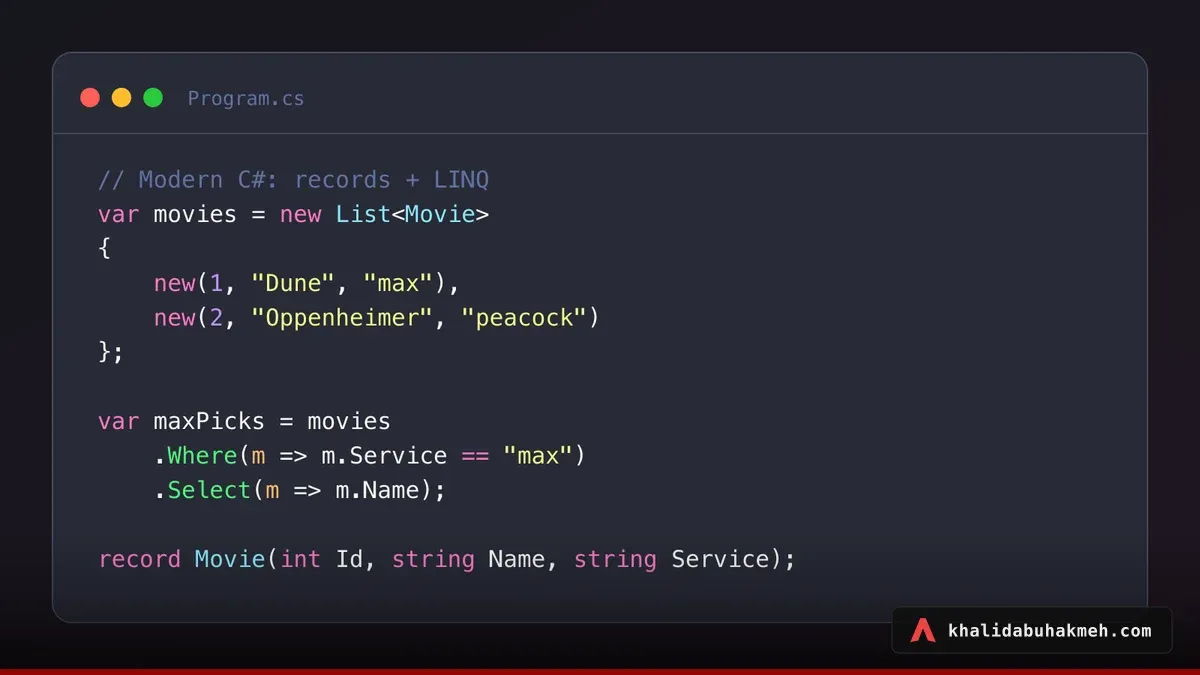
A record is a reference type built for immutable data. You get value equality, a readable ToString, and nondestructive copies with with for free.
public record Movie(int Id, string Name, string Service);
var a = new Movie(1, "Dune", "max");var b = a with { Service = "netflix" };   // a copy with one changebool same = a == new Movie(1, "Dune", "max"); // true (value equality)
A struct is a value type, copied by value, and best for small, immutable data like coordinates.
public readonly struct Point(int X, int Y);Rule of thumb: use a record for data you pass around, a class for objects with behavior and identity, and a struct only for small values where copying is cheap.
C# Properties
Properties expose data with optional logic. The shortest form is an auto-property.
public class Person{ public string Name { get; set; } // read/write public int Age { get; init; } // set only during construction public string Greeting => $"Hi, {Name}"; // computed, read-only}init accessors allow object-initializer syntax while keeping the property immutable afterward:
var p = new Person { Name = "Ada", Age = 36 };The field keyword (C# 14) lets an accessor reach the compiler-generated backing field directly, so you can add logic without declaring a separate field by hand:
public string Name{ get; set => field = value?.Trim() ?? ""; // "field" is the backing field}C# Inheritance, Interfaces, and Polymorphism
public interface IShape{    double Area();}
public class Circle(double radius) : IShape{    public double Area() => Math.PI * radius * radius;}
public abstract class Animal{    public abstract string Speak();}
public class Dog : Animal{    public override string Speak() => "Woof";}
Polymorphism means a variable of the base type can hold any derived instance and call the right override at runtime:
Animal animal = new Dog();Console.WriteLine(animal.Speak()); // "Woof"Favor interfaces for describing capabilities (what a type can do) and keep inheritance shallow.
C# Pattern Matching
Pattern matching tests a value’s shape and extracts data in one step. It’s worth learning early.
// type pattern with "is"if (value is string text)    Console.WriteLine(text.Length);
// switch on patternsstring describe = input switch{    0 => "zero",    > 0 and < 10 => "small",       // relational + logical patterns    int n => $"number {n}",         // type pattern    null => "nothing",    _ => "something else"};
// property patternsstring Classify(Movie m) => m switch{    { Service: "max" } => "Max original",    { Id: > 100 } => "high id",    _ => "other"};
C# Null Handling and Nullable Reference Types
With nullable reference types enabled (the default in new projects), the compiler warns you when a reference might be null. A ? marks a type that is allowed to be null.
string? maybeNull = GetNameOrNull();
// null-conditional: returns null instead of throwingint? length = maybeNull?.Length;
// null-coalescing: supply a fallbackstring name = maybeNull ?? "Anonymous";
// null-coalescing assignmentmaybeNull ??= "default";
// null-forgiving: "I know this isn't null" (use sparingly)int definite = maybeNull!.Length;
C# 14 also adds null-conditional assignment: you can assign through ?. so the write happens only when the left side isn’t null.
// assigns only if customer isn't null; GetCurrentOrder() is skipped otherwisecustomer?.Order = GetCurrentOrder();Leaning on ?. and ?? eliminates most NullReferenceException bugs before they happen. For the full picture of what #nullable enable emits, how to clear CS8618 without null!, and where null still slips through at runtime, see my upcoming deep dive on C# nullable reference types.
C# Exception Handling
try{    var text = File.ReadAllText("config.json");}catch (FileNotFoundException ex){    Console.WriteLine($"Missing file: {ex.FileName}");}catch (Exception ex){    Console.WriteLine($"Something failed: {ex.Message}");}finally{    // always runs, exception or not    Console.WriteLine("Done.");}
// throw when input is invalidArgumentNullException.ThrowIfNull(input);
Catch the most specific exception types first, and avoid swallowing a bare catch without logging or rethrowing. For the full picture, including throw vs throw ex, when filters, and custom exception types, see our guide on C# try/catch exception handling.
Performance note: Exceptions are very expensive, so avoid throwing them unnecessarily. “Expensive” means more memory allocations, slower execution, and added garbage-collection pressure. If you find yourself using exceptions for control flow, consider refactoring your code to use a different approach.
C# LINQ
LINQ (Language Integrated Query) lets you filter, transform, and aggregate collections with readable, composable queries. If you only learn one “advanced” feature from this cheat sheet, make it this one.
using System.Linq;
int[] numbers = [1, 2, 3, 4, 5, 6];
var evens = numbers.Where(n => n % 2 == 0);        // 2, 4, 6var doubled = numbers.Select(n => n * 2);          // 2, 4, 6, 8, 10, 12int sum = numbers.Sum();                            // 21int max = numbers.Max();                            // 6bool any = numbers.Any(n => n > 5);                 // truevar firstEven = numbers.First(n => n % 2 == 0);     // 2var ordered = numbers.OrderByDescending(n => n);    // 6, 5, 4, ...var list = evens.ToList();                          // materialize results
LINQ is lazy: nothing runs until you iterate the result (or call ToList, ToArray, Count, etc.). That means you can build up a query in pieces without touching the data until you need it.
C# Async and Await
async/await lets you perform I/O (network calls, file reads, database queries) without blocking a thread. An async method returns a Task (or Task<T>), and await unwraps the result when it’s ready.
public async Task<string> FetchAsync(string url){    using var client = new HttpClient();    string body = await client.GetStringAsync(url);    return body;}
// calling an async methodstring html = await FetchAsync("https://example.com");
// run work concurrently, then wait for all of itTask<string> a = FetchAsync("https://a.com");Task<string> b = FetchAsync("https://b.com");string[] results = await Task.WhenAll(a, b);
If a method performs any I/O, make it async and await it all the way up the call stack. Reading files is a common
case; see reading a file in C# for the synchronous and async variants side by side.
C# File Input and Output
The System.IO.File class handles most file work in one line, no extra packages required.
using System.IO;
// writeFile.WriteAllText("notes.txt", "Hello, file!");
// readstring text = File.ReadAllText("notes.txt");string[] lines = File.ReadAllLines("notes.txt");
// asyncawait File.WriteAllTextAsync("notes.txt", "Hello again");string again = await File.ReadAllTextAsync("notes.txt");
// check existencebool exists = File.Exists("notes.txt");
For the full set of read methods and their memory trade-offs, see C# read file: ReadAllText, ReadAllBytes, and more. For writing, appending, and StreamWriter, see how to write to a file in C#. To bundle files together, see creating a zip file with .NET.
C# Enums
An enum is a named set of constant values, far clearer than passing around magic numbers.
public enum Status{    Active,     // 0    Paused,     // 1    Archived    // 2}
Status current = Status.Active;
string label = current switch{    Status.Active => "Running",    Status.Paused => "On hold",    _ => "Done"};
C# Generics
Generics let you write one type or method that works with any type, with full type safety and no casting.
// a generic methodT First<T>(IList<T> items) => items[0];
// a generic classpublic class Box<T>(T value){    public T Value { get; } = value;}
var box = new Box<int>(42);int number = box.Value;   // strongly typed, no cast
You already use generics every time you write List<string> or Dictionary<string, int>. For a deeper guide to generic classes, methods, constraints, and generic math, see our upcoming post on C# generics explained.
Where You’ll Find C#
C# runs almost everywhere through .NET, which is cross-platform and open source. Here are the main places it shows up.
Web Apps and APIs
ASP.NET Core builds web apps, REST and GraphQL APIs, and real-time apps with SignalR. Blazor lets you write interactive browser UIs in C# instead of JavaScript, running on WebAssembly or over a server connection.
Desktop Apps
For Windows desktop software, you have WPF, Windows Forms, and WinUI. For cross-platform desktop, Avalonia and the Uno Platform target Windows, macOS, and Linux from one codebase.
Mobile Apps
.NET MAUI builds native iOS and Android apps (plus macOS and Windows) from a single C# project, sharing UI and logic across platforms.
Games
C# is the scripting language of Unity, one of the most widely used game engines in the world, and it also drives Godot through its C# bindings. Everything from mobile games to major console titles ships on Unity.
Cloud and Services
C# is a first-class language on Microsoft Azure and runs well on AWS and Google Cloud. It’s common for background workers, serverless functions, microservices, and gRPC services, with containers and Kubernetes fully supported.
IoT and Devices
.NET runs on single-board computers like the Raspberry Pi, and the .NET IoT libraries talk to sensors, displays, and GPIO pins. .NET nanoFramework pushes C# all the way down to microcontrollers like the ESP32.
Data, AI, and Tooling
C# powers CLI utilities, build pipelines, and developer tools, and libraries like ML.NET and the Microsoft.Extensions.AI packages bring machine learning and LLM integration into .NET apps.
How Do I Start Learning C# as a Beginner?
If you’re brand new, here’s a focused path through this cheat sheet:
- Install the .NET SDK from dotnet.microsoft.com and run
dotnet new consoleto create your first project. - Master the basics first: variables, control flow, methods, and collections. That’s enough to write real programs.
- Then learn the “productivity four”: classes/records, pattern matching, LINQ, and
async/await. These are where C# starts to feel powerful. - Build something small, like a to-do app, a file renamer, or an API that returns JSON. You learn far more by shipping than by reading.
You don’t need to memorize any of this. Keep the page open, write code, and the syntax sticks through use.
C# Tooling: SDK, IDEs, and Debuggers
The .NET tooling is one of the best reasons to pick C#: a single cross-platform SDK, three mature IDEs, and a debugger that lets you change code while the program is still running.
Everything starts with the dotnet CLI, which ships with the .NET SDK. You can create, build, run, test, and package a project without ever opening an editor.
dotnet new console -o MyApp # scaffold a console appcd MyAppdotnet add package Serilog # add a NuGet dependencydotnet run # build and rundotnet test # run the test suitedotnet format # fix formatting and styleFor day-to-day work, pick the editor that fits your setup:
| Tool | Platform | Best for |
|---|---|---|
| Visual Studio | Windows, Mac | The full-featured IDE: deepest debugging, profiling, and designers |
| VS Code + C# Dev Kit | Windows, Mac, Linux | A fast, lightweight editor with solid C# support |
| JetBrains Rider | Windows, Mac, Linux | A cross-platform IDE with powerful refactorings and analysis |
All three give you IntelliSense (type-aware completion), inline error highlighting, and one-click refactorings like rename and extract method.
The debugger is the part I’d miss most on other stacks. Set a breakpoint, run, and you can:
- Step through code line by line and inspect every variable.
- Hover a variable to see its live value, or pin it to a watch window.
- Change a value mid-run, or edit the code itself and keep going with Hot Reload and Edit and Continue, no restart required.
- Set conditional breakpoints that only trigger when, say,
id == 42.
Roslyn analyzers run as you type, flagging bugs and style issues before you ever build, and many offer a one-keystroke fix. The Debugger.Launch() method even lets you attach a debugger on demand from your own code.
Frequently Asked Questions
Is C# hard to learn for beginners?
C# is one of the more beginner-friendly compiled languages. It has clear, readable syntax, world-class tooling (Visual Studio, VS Code, and JetBrains Rider), and detailed compiler errors that tell you what’s wrong. Modern features like top-level statements let you write a working program in a single line, so you can start small and grow.
What is C# used for?
C# is used to build web apps and APIs (ASP.NET Core), desktop apps, cross-platform mobile apps (.NET MAUI), games (Unity), cloud services, and background/console tools. It runs on Windows, macOS, and Linux through .NET.
What is the difference between a class and a record in C#?
A class is a reference type suited to objects with behavior and identity. A record is a reference type optimized for immutable data: it gives you value-based equality, a readable ToString, and nondestructive copying with the with expression. Use a record when the object is essentially a bundle of data you pass around.
What is the difference between C# and .NET?
C# is the programming language; .NET is the platform it runs on. .NET provides the runtime that executes your code and the base class libraries (collections, file I/O, networking, LINQ, and more). You write C#, and .NET runs it.
Do I need Visual Studio to write C#?
No. You only need the free .NET SDK and any editor. Visual Studio, Visual Studio Code with the C# Dev Kit, and JetBrains Rider all work well, and you can compile and run from the command line with dotnet run.
Wrapping Up
The fastest way to internalize any of this is to keep the page open while you build something and reach for each feature as the need comes up.
For deeper dives on specific topics, explore my other posts on converting strings to numbers, reading files in C#, and C# records and the with keyword.
Thanks for reading, and please leave a comment below. Follow me on Mastodon at @khalidabuhakmeh for the latest .NET news and tutorials.
Around the web
Comments
Loading comments from GitHub Discussions…