
Directory.Build.props: Share Settings Across .NET Projects
Directory.Build.props shares MSBuild properties like Nullable and LangVersion across every .NET project in a solution, including nested overrides.
 Khalid Abuhakmeh
7 min read
Khalid Abuhakmeh
7 min read

Directory.Build.props is an MSBuild file that sets properties and package references once for every project below it in the folder tree. MSBuild finds it on its own, imports it before the project’s own settings, and lets any .csproj override a value by setting it again.
<Project>
  <PropertyGroup>    <Nullable>enable</Nullable>  </PropertyGroup>
</Project>
Drop that at the root of your solution, next to the .sln file, and every project below it gets Nullable enabled without you touching a single .csproj.
What Is Directory.Build.props and How Does MSBuild Find It?
MSBuild finds the file on its own, with no setup step. The SDK-style project format (Microsoft.NET.Sdk) imports a tiny bit of MSBuild logic (Sdk.props) at the very top of every project, and that logic searches upward from the project’s directory for a file named Directory.Build.props, stopping at the first one it finds. It does not keep walking further up and merging multiple copies; it imports exactly one.
Because the import happens near the top of the project file, before your project’s own <PropertyGroup> elements are evaluated, any property you set later in the .csproj wins. In my test, a root file set Nullable to enable and one project’s .csproj set it to disable. That project got disable, and its siblings kept enable. Put sensible defaults in the shared file and override them per project when you need to.
What Does a Typical Directory.Build.props Look Like?
Here’s one for Directory.Build.props a solution with a class library, a web API, and a test project:
<Project>
  <PropertyGroup>    <LangVersion>latest</LangVersion>    <Nullable>enable</Nullable>    <ImplicitUsings>enable</ImplicitUsings>    <TreatWarningsAsErrors>true</TreatWarningsAsErrors>    <Authors>Khalid Abuhakmeh</Authors>    <Company>Example Co</Company>  </PropertyGroup>
  <ItemGroup>    <PackageReference Include="Roslynator.Analyzers" Version="5.0.1">      <PrivateAssets>all</PrivateAssets>      <IncludeAssets>runtime; build; native; contentfiles; analyzers; buildtransitive</IncludeAssets>    </PackageReference>  </ItemGroup>
</Project>
After adding this, individual project files shrink down to just what’s actually different per project:
<Project Sdk="Microsoft.NET.Sdk.Web">
  <PropertyGroup>    <TargetFramework>net10.0</TargetFramework>  </PropertyGroup>
  <ItemGroup>    <PackageReference Include="Microsoft.AspNetCore.OpenApi" Version="10.0.12" />  </ItemGroup>
</Project>
No more Nullable, ImplicitUsings, or Authors repeated in every project. Running dotnet msbuild -getProperty:Authors on each project showed all three picking up Khalid Abuhakmeh from the shared file, and the analyzer reference showed up in all three builds. For the other files that live next to your projects, see common files in a .NET solution.
What Happens When You Nest Directory.Build.props Files?
The closest file wins and nothing merges. If a subfolder has its own Directory.Build.props, MSBuild imports that one and never touches the root file.
To test it, I kept a root file that set Authors and TreatWarningsAsErrors, then added a second Directory.Build.props in one project’s parent folder with a single unrelated property. That project lost both values and fell back to MSBuild defaults, even though the root file sat a few folders up.
If you want a nested file to extend the root one instead of replacing it, import the parent explicitly:
<Project>
  <Import Project="$([MSBuild]::GetPathOfFileAbove('Directory.Build.props', '$(MSBuildThisFileDirectory)../'))" />
  <PropertyGroup>    <!-- properties specific to this folder -->  </PropertyGroup>
</Project>
With that Import line in the nested file, -getProperty:Authors and -getProperty:LangVersion returned the root values again, alongside the nested folder’s own property. It’s an easy mistake to add a nested file for one subdirectory and silently lose everything from the root.
When Should You Use Directory.Build.targets Instead?
Use Directory.Build.targets when your logic depends on values the project sets. Directory.Build.props is imported early, so it can’t see properties the project itself hasn’t set yet, like AssemblyName or TargetFramework as finalized by the SDK. If you need logic that reacts to those values, like a custom build target or a property that’s computed from something the project defines, put it in Directory.Build.targets instead. The SDK imports this file late, after the project body, so everything the project set is already in scope.
<Project>
  <Target Name="PrintBuildInfo" AfterTargets="Build">    <Message Importance="high" Text="Building $(MSBuildProjectName) for $(TargetFramework), AssemblyName=$(AssemblyName)" />  </Target>
</Project>
With this at the solution root, dotnet build printed each project’s real TargetFramework and AssemblyName, values that only exist after the project file is evaluated. Directory.Build.targets follows the same search rule as the props file, so a nested one replaces the root one unless you import it explicitly.
How Do You Share Package Versions?
Use Directory.Packages.props for package versions. It’s a separate but related file: Directory.Packages.props, which enables central package management. Set ManagePackageVersionsCentrally to true and list versions once as PackageVersion items; your project files then reference packages by name only, no Version attribute.
<Project> <PropertyGroup> <ManagePackageVersionsCentrally>true</ManagePackageVersionsCentrally> </PropertyGroup> <ItemGroup> <PackageVersion Include="Roslynator.Analyzers" Version="5.0.1" /> </ItemGroup></Project>Adding this file to my scratch solution immediately produced NuGet error NU1008 on every project that still had an explicit Version on a PackageReference. That includes the analyzer reference in the shared Directory.Build.props above, so remove its Version attribute once the version lives here. After that the split is simple: Directory.Build.props for compiler and analyzer settings, Directory.Packages.props for package versions.
| File | Imported | Use it for |
|---|---|---|
Directory.Build.props |
Early, before the project body | Defaults projects can override, like Nullable or LangVersion |
Directory.Build.targets |
Late, after the project body | Targets and properties that depend on the project’s final values |
Directory.Packages.props |
With central package management enabled | Package versions, via PackageVersion items |
If you publish packages, the shared Authors value also becomes your package’s author metadata. See the guide from idea to NuGet package for the rest of that workflow, and using environment variables in your .NET builds for pulling build-time values into properties.
How Do You Debug What Got Imported?
Two switches save you from guessing. First, ask MSBuild directly what value a property resolved to for a given project:
dotnet msbuild path/to/Project.csproj -getProperty:NullableSecond, if you want to see the fully expanded project file, with every Import inlined, including Directory.Build.props and Directory.Build.targets, generate a preprocessed copy:
dotnet msbuild path/to/Project.csproj -pp:out.xmlI ran both against the scratch solution. -getProperty returned exactly the values each Directory.Build.props and .csproj combination should produce, and out.xml contained the flattened contents of the imported Directory.Build.props next to the project’s own elements. I tested on the .NET 10 SDK. -getProperty is a recent MSBuild switch, so on an older SDK check dotnet msbuild -h first.
For a view of the whole build, record a binary log and open it in MSBuildStructuredLog (project site), a free viewer by Kirill Osenkov. Pass -bl to dotnet build:
dotnet build -blThat writes msbuild.binlog next to your solution. The log records the targets, tasks, and property and item values from the build, and the viewer lets you browse and search them. When a property comes out wrong, you can search the log for the property name and see where it was set, instead of guessing which file won.
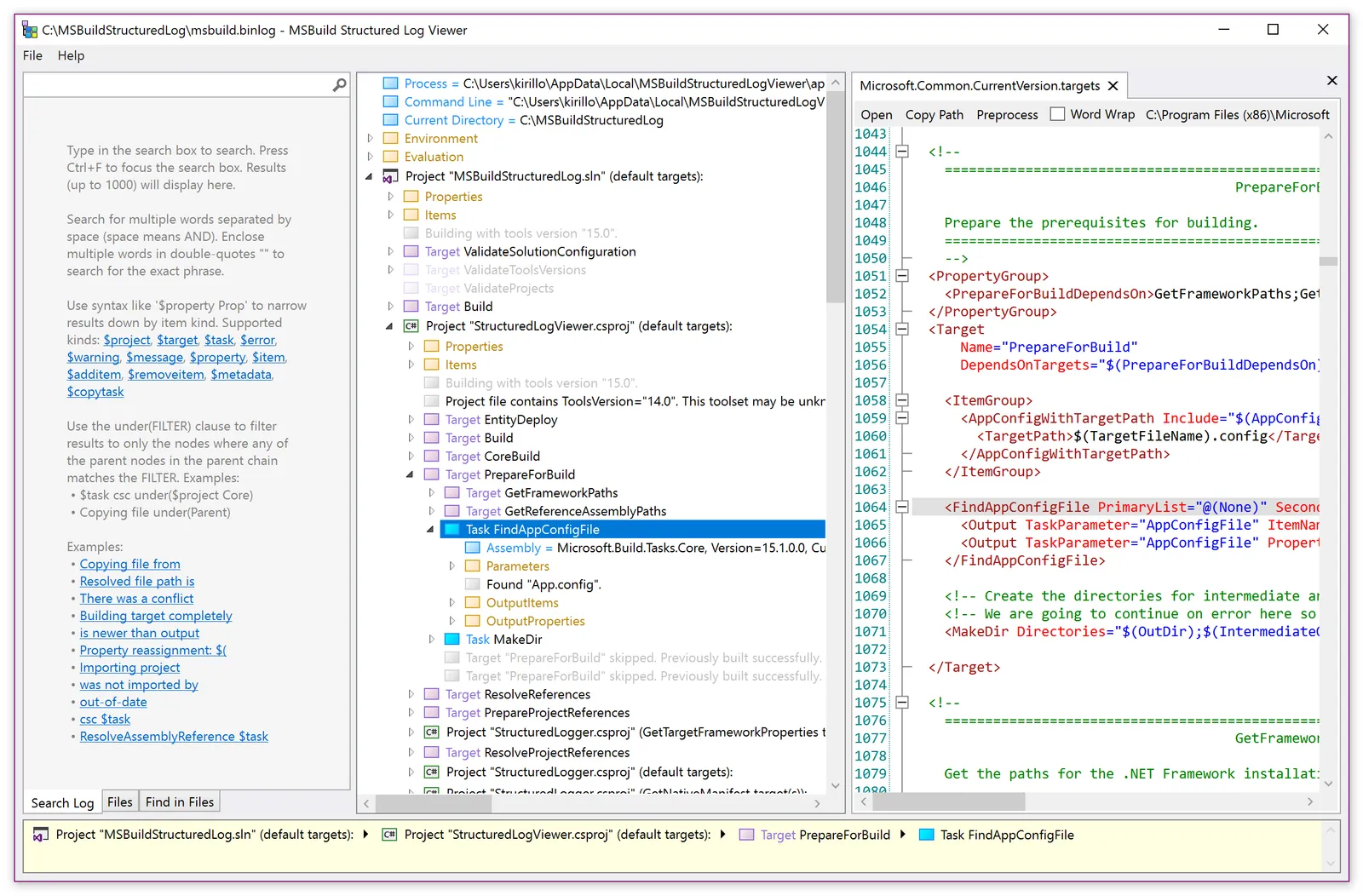
Screenshot from the MSBuildStructuredLog repository, which is MIT licensed.
What Are the Common Gotchas?
Four things are easy to forget:
- It applies to every project below it, including tests. If your test projects live under the same root as your main projects, they inherit everything from
Directory.Build.propstoo, unless they’re under a nested folder with their own copy of the file. - Nesting replaces, it doesn’t merge. As shown above, a closer
Directory.Build.propsmeans the root one is skipped entirely unless you add the explicitImport. - File name casing matters on case-sensitive file systems. Windows and macOS default to case-insensitive file systems, so
directory.build.propsandDirectory.Build.propsare treated the same. On a case-sensitive Linux file system, the name has to match exactly,Directory.Build.props, or MSBuild won’t find it. - It’s imported before the project body,
Directory.Build.targetsafter. Use.propsfor defaults you want projects to be able to override, and.targetsfor logic that needs to see the project’s final property values.
For the full reference on both files and how the SDK wires them in, see the official MSBuild docs on customizing your build.
Around the web
Comments
Loading comments from GitHub Discussions…