
ASP.NET Core File Upload: IFormFile Example
How to upload files in ASP.NET Core using IFormFile: single and multiple file uploads with Razor Pages, HTML forms, and working C# code examples.

ASP.NET Core file upload comes down to one interface: add an IFormFile (or IFormFile[]) parameter to your handler and the framework binds the uploaded file for you, as long as your form uses enctype="multipart/form-data". Our users will inevitably want to share more than text-based information with us. They may wish to transmit images, videos, or third-party formats to our applications. Uploading files is a long-solved problem, and in this post, we’ll see how we can enable file uploads for your ASP.NET applications. This approach works interchangeably between ASP.NET MVC or Razor Pages, but for the sake of brevity, we will be working with Razor pages.
HTML Markup
ASP.NET is a web platform and embraces the mechanisms of the web. In this post, we will be using the form, input, and button HTML tags to build the purest file upload experience we can. Here is the markup for a Razor page.
@page@model IndexModel@{    ViewData["Title"] = "Home page";}
<div class="text-center">    <h1 class="display-4">        The filename is <br/>        @Model.FileName    </h1>
    <form method="post" action="" enctype="multipart/form-data">        <input name="file" type="file" />        <button type="submit">Upload</button>    </form>
</div>
Important elements to note about our form:
The form’s enctype is multipart/form-data.
The input’s type is file, which uses the native browsers file selection control.
The button submits the form.
The use of multipart/form-data tells the browser to create a unique request to the server, with each input isolated to its boundary. The boundary definitions allow the server to parse the requested switching between different content types. In the example below, we have a text input and a file input.
POST /test HTTP/1.1Host: foo.exampleContent-Type: multipart/form-data;boundary="boundary"
--boundaryContent-Disposition: form-data; name="field1"
value1--boundaryContent-Disposition: form-data; name="field2"; filename="example.txt"
value2--boundary--
IFormFile
ASP.NET Core has introduced an IFormFile interface that represents transmitted files in an HTTP request. The interface gives us access to metadata like ContentDisposition, ContentType, FileName and more. The IFormFile interface also allows us to read the contents of a file via an accessible Stream.
Note: Buffering occurs for all transmitted files, which users can exploit to perform a denial of service attack. We should take precautions against such attack vectors.
To use the IFormFile in our application, we need only add a parameter to our POST handler. In this case, we are using Razor pages. We are careful to name the method parameter the same as our HTML input’s name.
public class IndexModel : PageModel{    private readonly ILogger<IndexModel> _logger;    public string FileName { get; set; }
    public IndexModel(ILogger<IndexModel> logger)    {        _logger = logger;        FileName = "Not Available";    }
    public void OnGet()    {    }
    public void OnPost(IFormFile file)    {        FileName = file.FileName;    }}
ASP.NET model binding mechanisms will take care of the rest for us. Here is the result of a single file upload.

Upload Multiple Files
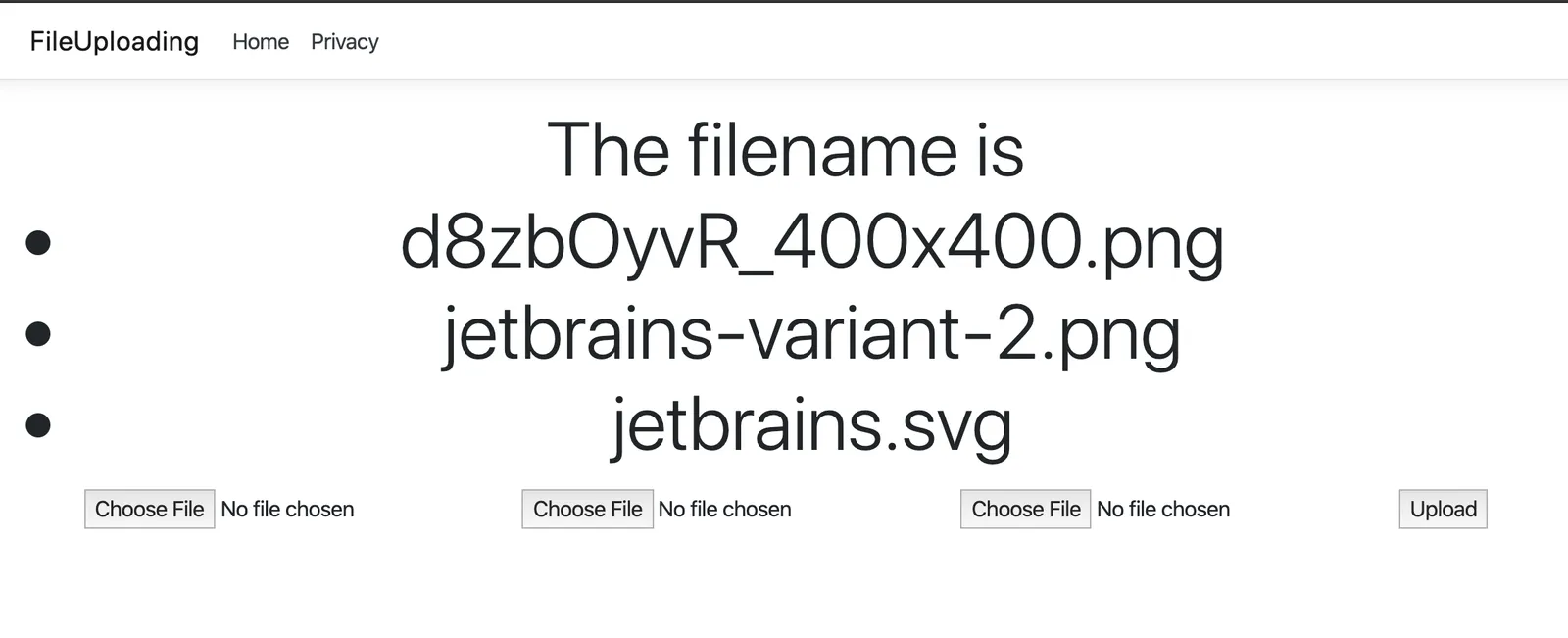
ASP.NET can also handle multiple file uploads with a few minor tweaks to our sample. In our view, we need to name each input the same so that they get bound to the same collection.
@page@model IndexModel@{    ViewData["Title"] = "Home page";}
<div class="text-center">    <h1 class="display-4">        The filename is <br/>        <ul>        @foreach (var name in Model.FileName)        {            <li>@name</li>        }        </ul>    </h1>
    <form method="post" action="" enctype="multipart/form-data">        <input name="file" type="file" />        <input name="file" type="file" />        <input name="file" type="file" />        <button type="submit">Upload</button>    </form>
</div>
And we also need to change our ASP.NET handler.
public class IndexModel : PageModel{    private readonly ILogger<IndexModel> _logger;    public string[] FileName { get; set; }
    public IndexModel(ILogger<IndexModel> logger)    {        _logger = logger;        FileName = new[] {"Not Available"};    }
    public void OnGet()    {    }
    public void OnPost(IFormFile[] file)    {        FileName = file            .Select(x => x.FileName)            .ToArray();    }}
Let’s look at the result of multiple file uploads.
Save an Uploaded File to the Server
Binding the IFormFile is only half the job — eventually, you need to write it somewhere. The critical rule here is never trust the client-supplied filename or path. A malicious client can send a FileName like ../../appsettings.json, so strip it down with Path.GetFileName before you combine it with a server-controlled uploads directory.
public class IndexModel : PageModel{    private readonly string _uploadsFolder;
    public IndexModel(IWebHostEnvironment environment)    {        _uploadsFolder = Path.Combine(environment.ContentRootPath, "uploads");        Directory.CreateDirectory(_uploadsFolder);    }
    public async Task OnPost(IFormFile file)    {        var extension = Path.GetExtension(file.FileName);        var storedFileName = $"{Guid.NewGuid():n}{extension}";        var path = Path.Combine(_uploadsFolder, storedFileName);
        await using var stream = File.Create(path);        await file.CopyToAsync(stream);    }}
Notice the handler is now async Task. CopyToAsync streams the file’s contents to disk without loading the entire thing into memory, which matters once people start uploading anything larger than a thumbnail. We also store the file under a generated Guid name instead of the original filename — two uploads named photo.png would otherwise overwrite each other, and the original name came from the client, so it isn’t something you can trust anyway. If you need to show users their original filename later, save it separately (in a database column, for example) alongside the generated one.
ASP.NET Core File Upload Validation
Saving a file is easy. Saving the right file is the part people forget. File upload validation happens in two places, and only one of them actually protects you.
Client-side validation is a hint, nothing more. Adding an accept attribute to the file input tells the browser’s file picker to filter what the user sees, which is a nice user experience improvement but trivially bypassed by anyone using curl or a modified request.
<input name="file" type="file" accept=".png,.jpg,.jpeg" />Server-side validation is the real check, and it belongs in your OnPost handler. At minimum, validate the file’s length (reject empty uploads and anything over a size you’re comfortable with) and check the extension against an allow-list instead of a deny-list.
public class IndexModel : PageModel{    private static readonly string[] AllowedExtensions = { ".png", ".jpg", ".jpeg" };    private const long MaxFileSizeInBytes = 5 * 1024 * 1024; // 5 MB
    public IActionResult OnPost(IFormFile file)    {        if (file.Length == 0)        {            ModelState.AddModelError("file", "The file is empty.");            return Page();        }
        if (file.Length > MaxFileSizeInBytes)        {            ModelState.AddModelError("file", "The file is too large.");            return Page();        }
        var extension = Path.GetExtension(file.FileName).ToLowerInvariant();        if (!AllowedExtensions.Contains(extension))        {            ModelState.AddModelError("file", "That file type isn't allowed.");            return Page();        }
        // optionally double-check file.ContentType as an extra signal,        // but don't rely on it alone, as it's also client-supplied.
        return Page();    }}
Checking file.ContentType can add a little more confidence, but remember the client sets that header too, so treat it as a secondary signal rather than your primary defense.
In a real handler you’d run these checks first, then fall through to the save logic from the previous section instead of just returning Page() — validate, and if everything passes, generate the stored filename and write the file.
Upload a File With Other Form Data
Real forms rarely upload just a file. You’ll usually want a title, a description, or some other metadata to travel alongside it in the same multipart/form-data post. ASP.NET Core handles this the same way it handles any other model binding — group your properties together and let the framework sort out the boundaries.
@page@model IndexModel
<form method="post" enctype="multipart/form-data">    <input asp-for="Upload.Title" />    <input asp-for="Upload.Description" />    <input asp-for="Upload.File" type="file" />    <button type="submit">Upload</button></form>
public class IndexModel : PageModel{ [BindProperty] public FileUploadModel Upload { get; set; } = new();
public void OnGet() { }
public async Task OnPost() { if (!ModelState.IsValid || Upload.File is null) { return; }
var extension = Path.GetExtension(Upload.File.FileName); var storedFileName = $"{Guid.NewGuid():n}{extension}"; // generate a unique name as shown earlier // ...save Upload.File under storedFileName, then persist Upload.Title / Upload.Description // to your database alongside the stored path. }}
public class FileUploadModel{ public string Title { get; set; } = string.Empty; public string Description { get; set; } = string.Empty; public IFormFile? File { get; set; }}That’s really all it takes to upload a file with form data — the file is just another property on your bound model.
Upload Files From an ASP.NET Core Web API
Not every app uses Razor Pages. If you’re building a Web API upload multiple files endpoint, the binding mechanics are the same; only the hosting model changes.
A controller-based approach looks like this:
[ApiController][Route("api/[controller]")]public class UploadController : ControllerBase{    private readonly string _uploadsFolder;
    public UploadController(IWebHostEnvironment environment)    {        _uploadsFolder = Path.Combine(environment.ContentRootPath, "uploads");        Directory.CreateDirectory(_uploadsFolder);    }
    [HttpPost("upload")]    [Consumes("multipart/form-data")]    public async Task<IActionResult> Upload([FromForm] IFormFileCollection files)    {        // in production, run the same length/extension validation        // from the earlier section before saving each file        foreach (var file in files)        {            if (file.Length == 0)            {                continue;            }
            var extension = Path.GetExtension(file.FileName);            var storedFileName = $"{Guid.NewGuid():n}{extension}";            var path = Path.Combine(_uploadsFolder, storedFileName);
            await using var stream = File.Create(path);            await file.CopyToAsync(stream);        }
        return Ok(new { count = files.Count });    }}
If you’re on Minimal APIs, the same thing without the controller ceremony:
app.MapPost("/upload", async (IFormFile file, IWebHostEnvironment environment) =>{    var uploadsFolder = Path.Combine(environment.ContentRootPath, "uploads");    Directory.CreateDirectory(uploadsFolder);
    var safeFileName = Path.GetFileName(file.FileName); // generate a unique name as shown earlier in a real app    var path = Path.Combine(uploadsFolder, safeFileName);
    await using var stream = File.Create(path);    await file.CopyToAsync(stream);
    return Results.Ok(new { file.FileName, file.Length });}).DisableAntiforgery();
app.MapPost("/upload-multiple", async (IFormFileCollection files, IWebHostEnvironment environment) =>{    var uploadsFolder = Path.Combine(environment.ContentRootPath, "uploads");    Directory.CreateDirectory(uploadsFolder);
    foreach (var file in files)    {        if (file.Length == 0)        {            continue;        }
        var safeFileName = Path.GetFileName(file.FileName); // generate a unique name as shown earlier in a real app        var path = Path.Combine(uploadsFolder, safeFileName);
        await using var stream = File.Create(path);        await file.CopyToAsync(stream);    }
    return Results.Ok(new { count = files.Count });}).DisableAntiforgery();
Minimal API endpoints that accept forms need that .DisableAntiforgery() call (or proper antiforgery token handling of your own) because ASP.NET Core’s built-in antiforgery middleware will otherwise reject the form post. That’s a reasonable tradeoff for APIs authenticated with a bearer token, since browsers don’t automatically attach those to requests, which is what antiforgery is protecting against in the first place. But if this endpoint is called from a browser using cookie authentication, disabling antiforgery opens the door to CSRF — in that case, keep antiforgery protection turned on and send a valid token with the request instead of disabling it. If you want a nicer UI around uploading multiple files, check out my post on building a multiple-file drag-and-drop component, and if your files are getting rejected for being too big, see how to increase the file upload size limit in ASP.NET Core.
Conclusion
File uploads are a little less scary with the introduction of IFormFile and an understanding of web standards. There are a few limitations and pitfalls explained in greater detail on the Microsoft documentation site. I hope you found this post helpful, and please leave a comment below.
Around the web
Comments
Loading comments from GitHub Discussions…