
YouTube Thumbnail URL Format (and Custom Ones in C#)
YouTube thumbnail URLs follow img.youtube.com/vi/ID/maxresdefault.jpg, with smaller fallbacks. Then learn to generate custom thumbnails with ImageSharp.

A YouTube video’s thumbnail URL follows the same pattern: https://img.youtube.com/vi/VIDEO_ID/maxresdefault.jpg,
where VIDEO_ID is the 11-character ID from the video’s URL. The highest-resolution maxresdefault.jpg isn’t guaranteed to exist for every video, so if it doesn’t load, fall back to sddefault.jpg, hqdefault.jpg, or mqdefault.jpg. default.jpg is the small one that’s
there for every video. That covers looking up a thumbnail.
This post is about the other direction: generating your own custom thumbnails in C#, not fetching YouTube’s. I watch more YouTube videos than I’d ever like to admit. It’s a great source of knowledge for interesting topics like programming, cooking, tiny house living, and much more. Lately, I’ve also wondered about taking some of my blog content and creating videos for my most popular posts. YouTube is an excellent platform for cross-promotional content, and would likely help me build a broader audience.
Updated October 2026: I rewrote the code in this post for current ImageSharp. The original used 2020-era APIs (
SixLabors.Primitives,FontCollection.Install,TextGraphicsOptions) that no longer exist. The sample below was built and run against ImageSharp 4.1.3 and ImageSharp.Drawing 3.1.3 on .NET 10. Text and shape drawing now lives in the separateSixLabors.ImageSharp.Drawingpackage, and Six Labors now has a licensing model, so check their license terms before shipping anything. In my debug build I only got a warning about a missing license.
In this post, I’ll show you how you can take your existing blog content and generate engaging YouTube thumbnails. We’ll be using ImageSharp to accomplish our goal. Let’s get started!
YouTube Thumbnail Fundamentals
YouTube thumbnails help attract viewers, so they should be as immediately striking as possible. Characteristics that add flair to a thumbnail include the title text, font choice, colors, and imagery. Let’s take a look at some examples of thumbnails.
As you can see, there are a few tricks folks are employing:
- A hero image
- Distinctive brand logo
- Title text
- Color
Utilizing these characteristics can help your video stand out from other videos on a user’s recommendation page.
There is one technical constraint to YouTube thumbnails. All thumbnails are constrained to 1280x720 pixels. Other than that, you are free to explore your creativity.
Let’s Generate Our Thumbnails
Like I mentioned in the introduction of this post. The idea is to reuse blog post content as videos. Most of my posts have a hero image, a title, and I also have a distinctive brand. We can use all three of those to build assets to autogenerate standout thumbnails.
Let’s start by looking at the visual components that I will be compositing into a single thumbnail. First, we start with a brand/logo bar. Branding creates a visual signature for all the videos.
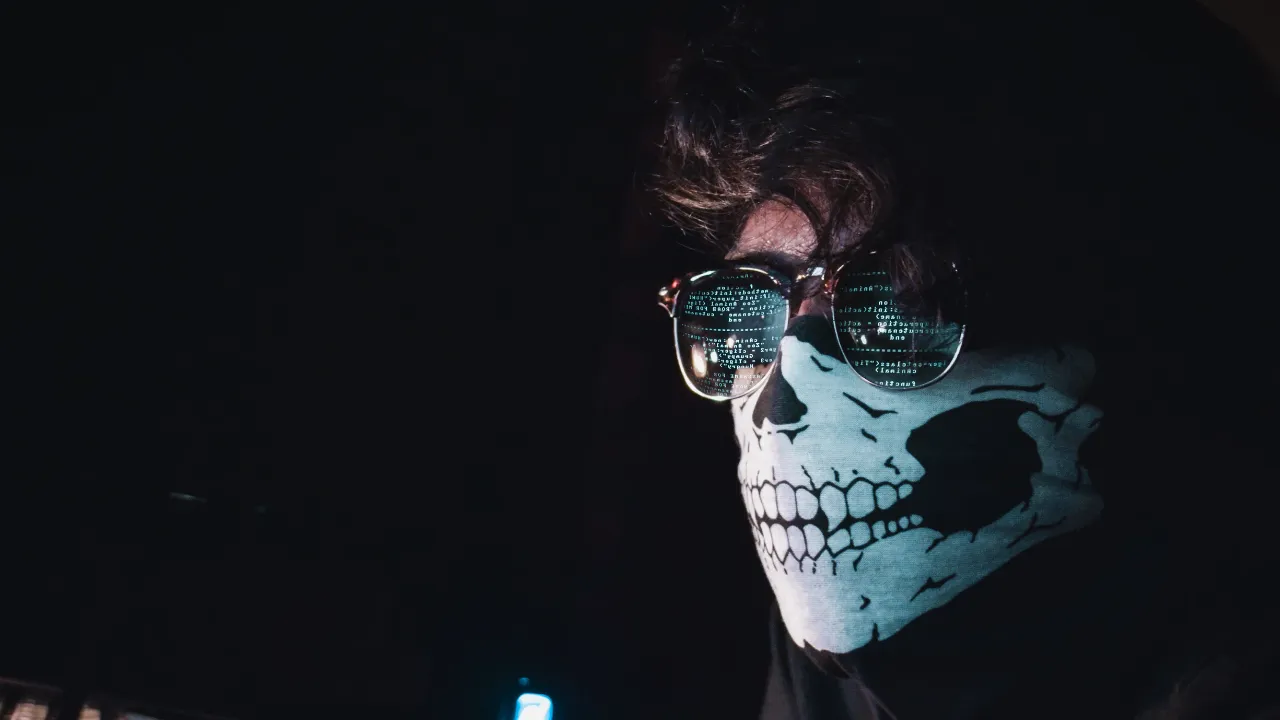
The second asset is the background, which will create an interesting texture for the title of our videos.


Before we get started, we need information about our videos. In the example, I hardcoded an array of values that include a title and a background image.
var thumbnails = new []{ new { title = "Hypermedia Lite For ASP.NET Core HTTP APIs", image = "./images/bg_lady_escalator.png" }, new { title = "Reading RSS Feeds With .NET Core", image = "./images/bg_ghost_mask.png" }, new { title = "Automate Your Blog With GitHub Actions", image = "./images/bg_computer_programmer.png" }};Let’s look at the code used to generate our thumbnails.
using SixLabors.Fonts;using SixLabors.ImageSharp;using SixLabors.ImageSharp.Drawing.Processing;using SixLabors.ImageSharp.Processing;
using var logo = Image.Load("./images/logo_bar.png");
// load the font and create a 130 point version of itvar fonts = new FontCollection();var family = fonts.Add("./BebasNeue-Regular.ttf");var font = family.CreateFont(130);
var thumbnails = new[]{    new { title = "Hypermedia Lite For ASP.NET Core HTTP APIs", image = "./images/bg_lady_escalator.png" },    new { title = "Reading RSS Feeds With .NET Core", image = "./images/bg_ghost_mask.png" },    new { title = "Automate Your Blog With GitHub Actions", image = "./images/bg_computer_programmer.png" }};
// output directoryvar outputDirectory = Directory.CreateDirectory("./output");
// text options are centered on the origin point,// and wrap once a line hits 900 pixelsRichTextOptions TextOptions(float x, float y) => new(font){    Origin = new PointF(x, y),    WrappingLength = 900,    HorizontalAlignment = HorizontalAlignment.Center,    TextAlignment = TextAlignment.Center};
foreach (var info in thumbnails){    using var thumbnail = Image.Load(info.image);
    // let's add the logo    thumbnail.Mutate(x => x.DrawImage(logo, new Point(0, 0), 1f));
    // let's add the text shadow    thumbnail.Mutate(x => x.Paint(canvas => canvas.DrawText(        TextOptions(653, 203), info.title, Brushes.Solid(Color.MediumPurple), pen: null)));
    // let's add the text    thumbnail.Mutate(x => x.Paint(canvas => canvas.DrawText(        TextOptions(650, 200), info.title, Brushes.Solid(Color.White), pen: null)));
    var output = Path.Combine(outputDirectory.FullName, Path.GetFileName(info.image));    thumbnail.Save(output);}
To run it, add the SixLabors.ImageSharp.Drawing package, which brings in ImageSharp and Fonts as dependencies.
dotnet add package SixLabors.ImageSharp.DrawingThere are a few critical points in the code you should take note of:
- Images are loaded into an
Imageobject. - We can load any fonts we want with a
FontCollection. - Mutation is a layering process from bottom to top.
- We draw our logo first at the left of the background image.
- Text can wrap using
WrappingLengthonRichTextOptions. - We create a shadow by writing twice, offset by a few pixels.
- Drawing text happens inside
Paint, which gives us a canvas to draw on.
As you can see, it takes very few lines to generate a thumbnail. Let’s look at the results!

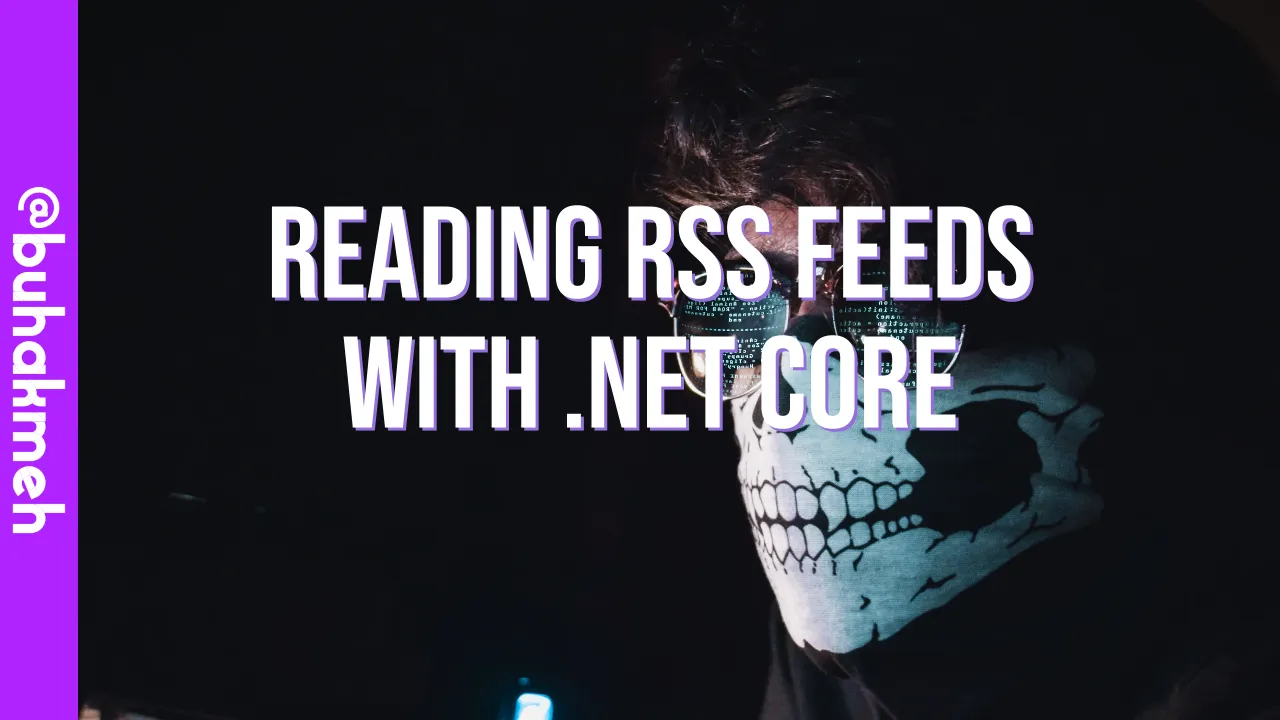
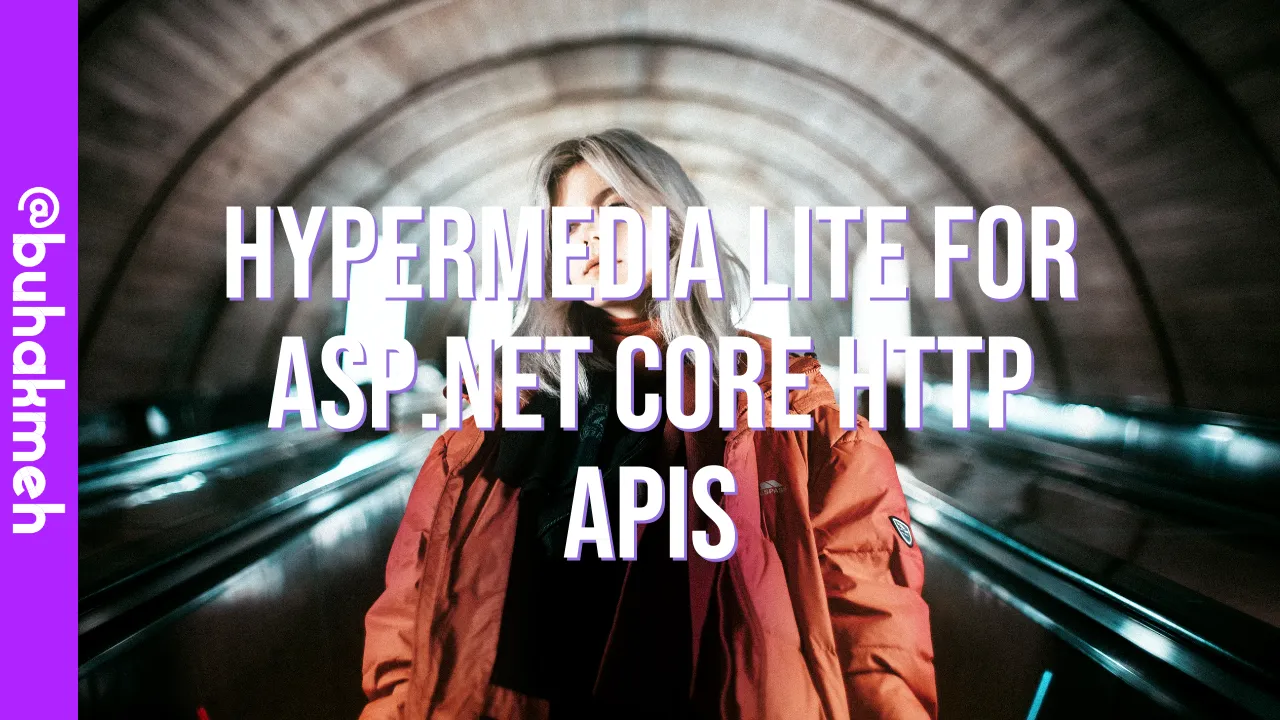
Pretty cool right! Download the project on my GitHub page.
Tips
Finding the right thumbnail for you will take some trial and error. Don’t be afraid to experiment. Here are some tips from a long time YouTube watcher.
Upfront Preperation
I used a photo-editing application to create my components. Doing some prep-work upfront means you have to write less code to generate your thumbnails. That said, ImageSharp is more than capable of also doing the same prep work.
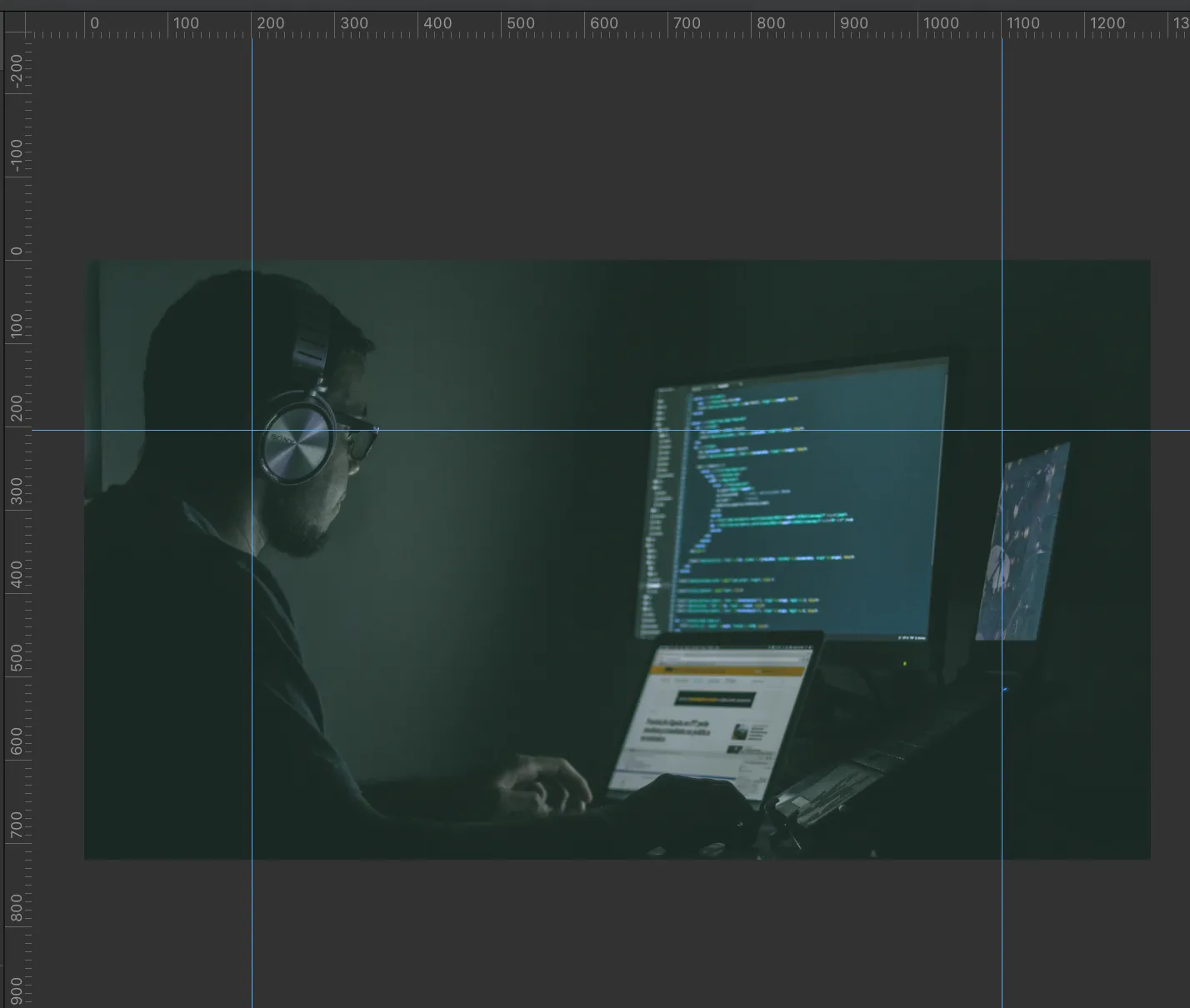
Use the ruler feature to understand where your text will likely appear.
Average Title Lengths
Your visual composition will depend on how long your titles are. If they are too short, your image may look anemic. If they are too long, the text will run off the image.
Real Folks
I find images with real people in them intriguing. Try combining text, images, and personalities into your thumbnail. For example, look at these two thumbnails about food. Which one are you more likely to click?
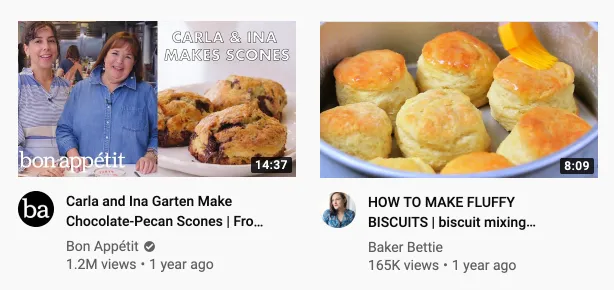
If you have a green screen, take some photos of yourself doing funny faces, scratching your head, or laughing. You can randomize those photos into your thumbnails.
Conclusion
In this post, I showed you how to generate YouTube thumbnails, but you could also use this technique to create unique social media images for your posts. ImageSharp makes it exceedingly easy to composite images and help you focus on creating content. Understand the constraints of the YouTube platform, and the psychology of the viewer can help you create the ultimate thumbnails. I hope you found this post helpful, and thank you for reading.
Background image credits go to the following creators:
I also want to thank Kevin Giszewski, who had already created a sample project.
Around the web
Comments
Loading comments from GitHub Discussions…